Visual Studio / Git - Moving commits to another branch via Cherry-Pick
Ever have the problem where you were not paying attention, and you created a few commits on the MASTER branch, instead of a feature branch?
Info
This post was originally published in 2019, and has been adopted to this static-site from wordpress.
No worries- I just made that exact same mistake, and I am going to demonstrate how to resolve the issue....
In the below image, you can see.... I accidentally made my commits to the master branch, instead of my feature/dev/test branch. Instead of redoing all of the commits manually, I am going to demonstrate the cherry-pick method for manually moving the commits over.
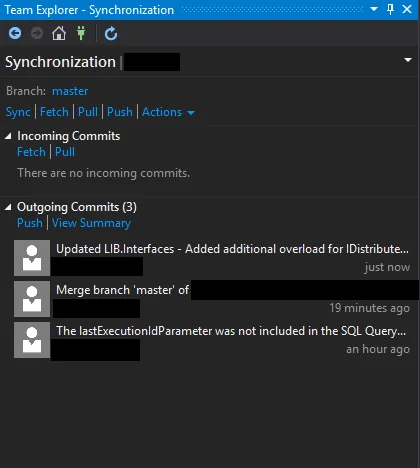
Uh-oh, I accidentally commited my changes to master....
Method: Cherry Pick Commits to new branch
For method one, I will demonstrate cherry-picking the specific commits, into the proper branch.
Step 1: Take note of the specific commits.
In my example, I need to move these commits:
- dda291d4 - Update LIB.Interfaces
- d46a4441 - The lastExecutionIdParameter....
I am leaving out the "merge branch 'master'"commit, because, the new branch is already up to date with master.
Step 2: Create new branch, or switch to the proper branch.
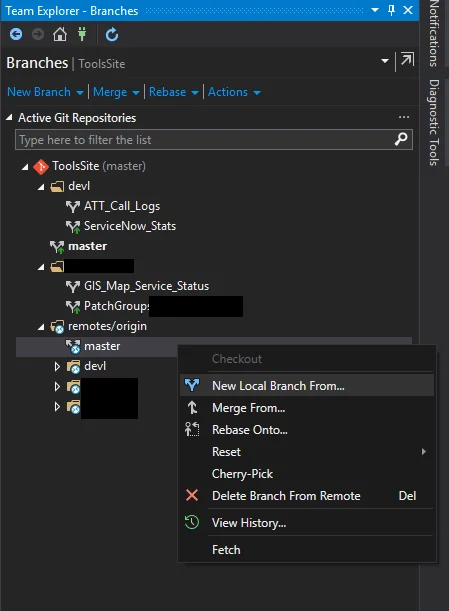
Create a new branch, or select the proper branch.
Step 3. Cherry pick the individual commits
While this functionality is likely built into visual studio somewhere, I chose the command line terminal to perform the cherry-pick.
If you do not have git in your path variable, you may use the visual studio Nuget package manager console to perform these changes.
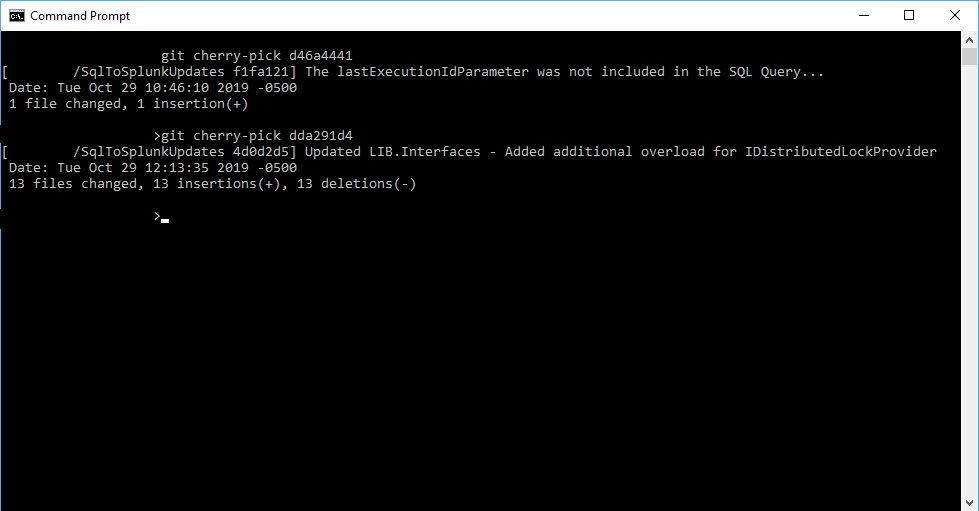
git cherry pick command
Done!
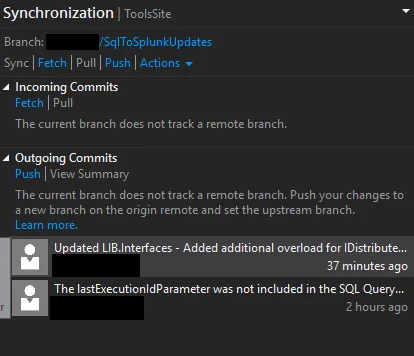
Voila- commits are now on the proper branch.
After cherry-picking the individual commits to the new branch, you are done!
Make sure to rebuild with the updated code, to ensure you didn't leave something out.